
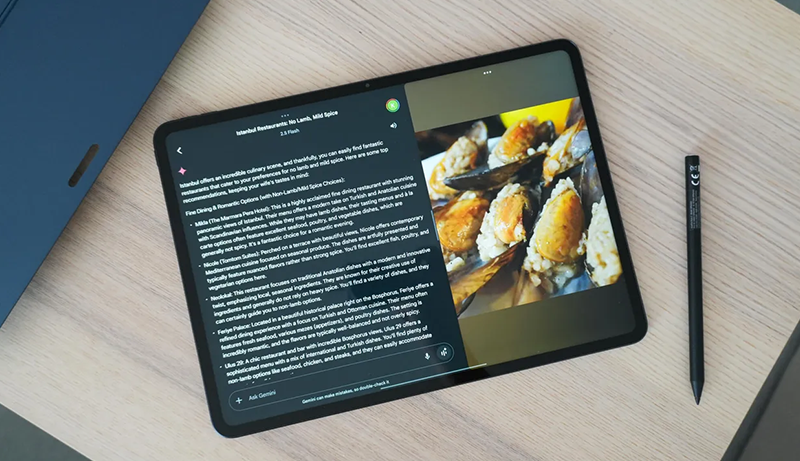
In a world where convenience and productivity go hand in hand, split-screen Android tablets have become a game-changing solution for users who want to do more in less time. These devices allow you to run multiple apps side by side — whether you’re attending an online class while taking notes, browsing research while drafting a report, or managing social media alongside streaming content. Designed for efficiency, modern tablets offer intuitive multitasking features such as gesture-based window control, drag-and-drop functionality, and adjustable layout ratios to help users personalize their workflow.
Unlike smartphones with cramped screens or laptops that can feel bulkier on the go, tablets strike the perfect balance between portability and usability. They are ideal for professionals, students, content creators, and even casual users who prefer a more streamlined digital experience across entertainment and work. A great split-screen Android tablet should deliver sharp visuals, powerful performance for simultaneous task handling, fast app switching, and long-lasting battery support to sustain multitasking throughout the day.
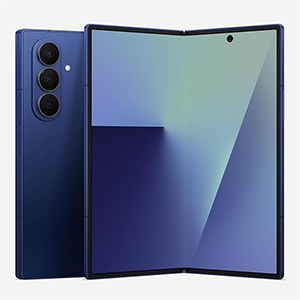
Galaxy Z Fold7

OnePlus Pad 3
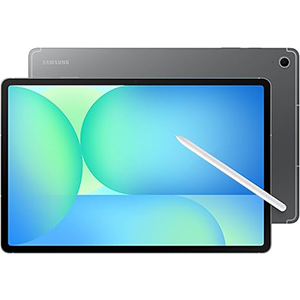
Galaxy S10 FE+
As Android continues refining its multitasking interface with every generation, split-screen tablets have evolved into true productivity machines — accessible, versatile, and future-ready for users seeking a powerful alternative to traditional computing setups.
1. Samsung Galaxy Z Fold7
The Galaxy Z Fold7 stands out as a hybrid device that merges smartphone convenience with tablet-level productivity, making it a highly capable option for split-screen multitasking. Its foldable design transforms effortlessly from a compact handheld phone to a wide tablet-sized display, giving users more surface area to work with when running two or even three apps at the same time. The unfolded display feels natural for tasks like video conferencing while taking notes, editing photos alongside a reference window, or dragging content between apps.
Its ultra-refined hinge mechanism enhances durability while maintaining a slim and premium feel, making it impressively comfortable to carry and use on the go. The large inner screen delivers outstanding clarity and smooth motion, ideal for streaming, document work, and creative tasks. The multitasking interface is polished, allowing users to pin apps to a taskbar for faster switching and arrange screens with precise control. It supports advanced window resizing and floating windows for pro-level flexibility.
Beyond productivity, the entertainment experience is immersive, with cinematic visuals and rich audio. The device feels purpose-built for power users who demand flexibility without compromising portability. It’s one of the most advanced choices available for users who want a phone and tablet experience in one highly capable foldable device.
Pros:
- Expands into a large 8-inch display for multitasking
- Premium build with advanced durability
- Excellent 200MP camera performance
- Smooth AI-enhanced multitasking experience
- Combines phone and tablet in one convenient device
Cons:
- High price point
- Battery performance varies under heavy use
2. OnePlus Pad 3
The OnePlus Pad 3 is designed for users who prioritize an ultra-fluid multitasking experience paired with premium visual performance. Its expansive display is not only sharp but exceptionally smooth, offering a high refresh rate that enhances split-screen responsiveness and overall navigation. Whether running two productivity apps or combining media and research windows, the interface remains seamless, making it ideal for professionals, creators, or multitaskers handling demanding workflows.
Its slim aluminum build gives it a refined and modern presence, while still being lightweight enough for comfortable handheld use over extended periods. The tablet is also engineered for extended sessions, delivering long endurance with support for rapid recharging — ideal for users who need quick top-ups between meetings, flights, or classes. The multitasking system allows users to run up to three apps simultaneously using an adaptive layout, and its gesture-based controls make app positioning fast and intuitive.
Audio output is equally impressive, powered by a powerful multi-speaker setup that enhances both entertainment and productivity experiences, especially during video calls or media consumption. With excellent balance in display quality, speed, and battery intelligence, the OnePlus Pad 3 positions itself as a highly efficient Android tablet that delivers premium split-screen performance without compromise.
Pros:
- Stunning 13.2-inch 3.4K display with 144Hz refresh rate
- Ultra-slim and elegant aluminum design
- Fast charging and long battery life
- Excellent audio from eight-speaker Dolby Atmos system
- Smooth multitasking via Open Canvas interface
Cons:
- Lacks fingerprint recognition
- Face unlock struggles in low light
- Limited accessories compared to competitors
3. Samsung Galaxy Tab S10 FE+
The Galaxy Tab S10 FE+ is a versatile Android tablet designed to handle multitasking with ease, making it a strong contender for users seeking a reliable split-screen experience. Its large display provides ample room to comfortably run two apps side by side, ideal for note-taking during video calls, comparing documents, or streaming tutorials while following along in another app. The screen offers vivid colors and smooth refresh rates, enhancing both productivity and entertainment without feeling cramped.
Durability is a highlight, with a water-resistant design and sturdy construction that supports everyday use. The tablet also integrates stylus support, allowing users to take precise handwritten notes, sketch, or annotate documents directly on the screen — a useful feature for students and professionals who prefer a hands-on approach. Multi-window functionality is intuitive, enabling users to switch between apps quickly, adjust window sizes, and maintain a clean, organized workspace.
Audio performance complements the visual experience, delivering clear sound during calls, video playback, and multimedia consumption. Long-lasting battery life ensures that dual-app usage can extend through a full day without interruption. Combining style, usability, and reliable performance, the Galaxy Tab S10 FE+ provides an efficient platform for those who want an Android tablet that supports advanced multitasking while remaining practical and portable.
Pros:
- Large 13.1-inch high-resolution screen with smooth 90Hz refresh rate
- Responsive S Pen for writing and drawing
- Long-lasting battery life
- IP68 water-resistant and durable design
- Excellent for productivity and entertainment
Cons:
- Slightly bulky for extended handheld use
- Price may feel high for casual users
- Limited color options available
4. Google Pixel Tablet
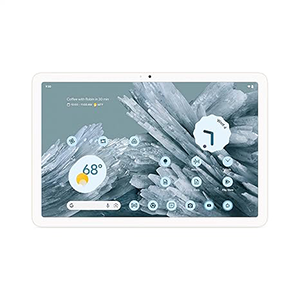
The Google Pixel Tablet offers a smooth, well-integrated split-screen experience on a vibrant display that emphasizes clarity and responsiveness. Its 11-inch screen provides enough real estate to comfortably manage two apps simultaneously, whether users are participating in video conferences while taking notes, browsing while referencing documents, or managing communication apps alongside entertainment. The interface is simple and fluid, making multitasking intuitive for both beginners and experienced users.
Portability is enhanced by its lightweight design, making it easy to hold or position on a desk without strain. The tablet’s AI features further streamline productivity, allowing users to quickly search, edit images, or perform tasks without leaving the current app. Floating windows and adjustable screen ratios enable flexible multitasking setups, ensuring that workspaces are optimized for individual needs. The integrated speakers deliver crisp and clear audio, enhancing video calls, media playback, and interactive content.
Battery performance supports extended sessions, ensuring users can rely on the device for long hours of simultaneous app usage. Whether for professional workflows, creative projects, or casual multitasking, the Google Pixel Tablet combines responsive design, vivid display quality, and intelligent features to provide an accessible and productive Android experience for users who demand efficiency and versatility in one compact device.
Pros:
- Split-screen multitasking is seamless and responsive
- AI tools enhance creativity and productivity
- Excellent video calling features with auto-framing
- Vivid 11-inch display with adaptive brightness
- Strong integration with Google ecosystem
Cons:
- Docking accessories sold separately
- Not ideal for heavy gaming
- Pricier than other mid-range tablets
5. Lenovo Tab P11
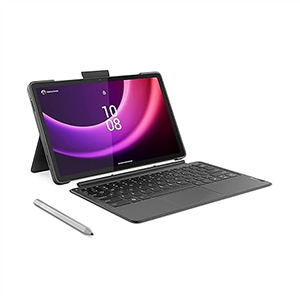
The Lenovo Tab P11 (2nd Gen) is a mid-range Android tablet designed with multitasking efficiency in mind. Its 11.5-inch display offers a spacious and clear workspace, allowing users to operate two apps simultaneously without compromising readability or navigation. The split-screen mode is intuitive, enabling seamless resizing, pinning, and movement of app windows to suit different workflow requirements. It is especially useful for students, content creators, or professionals managing multiple tasks.
The device combines portability with premium usability, featuring a slim aluminum chassis that feels light yet durable. Battery life is impressive, supporting extended split-screen sessions, streaming, and productivity tasks without frequent recharging. Additional accessories, including the stylus and optional keyboard, enhance the tablet’s versatility by providing precise input methods for drawing, note-taking, or document editing.
The multimedia experience is also notable, with rich audio output and vibrant visuals that make both productivity and entertainment engaging. Despite being a mid-range option, the tablet delivers a reliable performance for multitasking, with smooth transitions between apps and minimal lag. Its combination of display quality, ergonomic design, and functional flexibility makes the Lenovo Tab P11 (2nd Gen) an effective and practical solution for users looking to maximize efficiency and convenience on a single Android tablet.
Pros:
- 11.5-inch 2K display delivers sharp visuals
- Includes keyboard and pen for productivity
- Long battery life ideal for travel or study
- Smooth split-screen performance
- Comfortable reading mode for long sessions
Cons:
- Occasional slow startup times
- Build feels mid-range compared to premium rivals
- Pen performance can vary across apps
Key Considerations for Split-Screen Tablets
When selecting a tablet for split-screen productivity, several factors should be carefully evaluated to ensure an optimal multitasking experience. Display size is a primary consideration, as larger screens provide more room for multiple apps, improving readability and reducing the need for constant zooming or scrolling. A resolution that supports sharp visuals is equally important, allowing text, images, and multimedia to remain clear when apps are displayed side by side. High refresh rates enhance the smoothness of transitions, gestures, and scrolling, creating a more responsive and comfortable user experience.
Performance is another critical factor. Even though specific hardware details may vary, a tablet must handle simultaneous apps without noticeable lag or delays. Smooth multitasking requires efficient memory management, optimized software, and support for floating windows or adjustable app sizes. Users should also consider the operating system and its multitasking features, as some Android versions provide more intuitive split-screen controls, enhanced task switching, and greater flexibility in arranging multiple apps.
Battery life is a practical yet crucial aspect. Multitasking consumes more power, especially when streaming, editing, or running resource-intensive apps. A tablet with long-lasting battery support ensures that users can maintain productivity throughout the day without frequent interruptions. Fast charging capabilities also contribute to convenience, allowing users to quickly replenish power when needed.
Accessory support enhances usability. Stylus input, detachable keyboards, and docking stations can transform a tablet from a casual device into a true productivity tool. High-quality audio and display performance are important for calls, video conferences, and media consumption, which often run concurrently with other tasks in split-screen mode. Additionally, build quality, ergonomics, and portability should be considered to ensure the device is comfortable to hold and transport during extended use.
Lastly, software updates and ecosystem compatibility can significantly influence the multitasking experience. Devices integrated with productivity apps, cloud services, and cross-device synchronization improve workflow efficiency and provide a more seamless user experience. Evaluating these considerations collectively will help users select a split-screen tablet that delivers smooth, effective, and enjoyable multitasking for work, study, and entertainment.

What is the Best Tablet for Multitasking?
The best tablet for multitasking is one that balances display size, performance, software optimization, and battery life to support running multiple apps simultaneously. A large, high-resolution screen allows users to comfortably view two or more applications without straining their eyes. Devices with responsive touch controls and smooth refresh rates make switching between apps fluid, while support for floating or resizable windows provides flexibility in managing tasks.
Software plays a pivotal role in multitasking. Tablets running recent versions of Android often include native split-screen support, taskbars for quick app access, and gesture-based controls that simplify window management. Some tablets offer productivity-focused enhancements, such as stylus input for note-taking, dedicated keyboard shortcuts, or AI-assisted features to streamline workflows. These integrations enable users to perform professional, educational, or creative tasks more efficiently.
Battery endurance is equally important. Multitasking typically consumes more power, especially when using media apps alongside productivity software. A tablet with a long-lasting battery ensures continuous workflow without frequent interruptions. Portability and ergonomic design also enhance the multitasking experience, allowing users to work comfortably in different settings, from desks to couches, or on the move.
Ultimately, the best multitasking tablet is a versatile device that provides ample screen real estate, reliable performance, long battery life, and intuitive software features. It should empower users to handle professional, educational, or creative tasks efficiently while remaining portable and enjoyable to use.
Which Tablets Support a Second Screen?
Several Android tablets now support second-screen functionality, allowing users to extend their workspace across multiple displays. This is particularly useful for professionals who need to reference documents while working in another app or for creators who want an extended canvas. Tablets with larger screens and advanced multitasking software often allow a primary display to run two apps simultaneously while using a secondary device, such as another tablet or monitor, to mirror or expand content.
Second-screen support can vary depending on software and operating system versions. Many newer Android tablets integrate features like screen casting, wireless display connections, or USB-C monitor support. Some devices include native apps or settings that simplify the process, allowing users to drag windows between screens or duplicate their tablet display to a secondary device. Others leverage cloud-based services to sync apps and workflows across multiple screens seamlessly.
When using a second screen, users benefit from enhanced productivity, especially for tasks like video editing, spreadsheet analysis, programming, or content creation. A combination of touchscreen input and optional accessories like keyboards or styluses further improves efficiency. High-resolution displays and consistent color accuracy across screens ensure visual continuity, making dual-screen setups practical for both professional and entertainment purposes.
In addition to hardware, software optimization is critical. Tablets that receive regular updates are better equipped to handle second-screen workflows, providing stability, reduced lag, and better app compatibility. For those who frequently multitask or manage complex projects, selecting a tablet with robust second-screen capabilities is a key factor in maximizing productivity and maintaining a flexible digital workspace.
How Do I Activate Split Screen Mode?
Activating split-screen mode on an Android tablet is straightforward and designed for efficiency. First, open the apps you want to use. Access the recent apps or multitasking view, typically by swiping up from the bottom of the screen or pressing the dedicated multitask button. From here, locate the first app you want in split-screen mode and select the option labeled “Split Screen,” “Open in Split View,” or a similar command depending on your device’s Android version.
Once the first app is active in split-screen mode, the remaining portion of the display will show recent apps or your home screen. Choose the second app you wish to use, and it will automatically occupy the other half of the screen. Users can adjust the size of each window by dragging the divider between apps, providing more space for one app while keeping the other accessible. Some tablets also support floating windows, which overlay apps above the main display for enhanced flexibility.
Additional controls allow users to swap app positions, pin windows, or quickly exit split-screen mode when finished. Gestures or navigation buttons vary by Android version and tablet manufacturer, so consulting the device’s guide may provide more device-specific instructions. Split-screen mode is optimized for tablets with larger displays, enabling users to multitask efficiently without sacrificing readability or functionality.
By following these steps, users can maximize their tablet’s productivity, seamlessly interacting with multiple apps, enhancing workflows, and improving the multitasking experience for both professional and personal tasks.
Which Android Version Has Split Screen?
Split-screen functionality was officially introduced with Android 7.0 Nougat, providing native support for running two apps simultaneously on a single display. Devices running Android 7.0 or later can access this feature, allowing users to drag a divider between apps, resize windows, and interact with both applications at once. Over subsequent Android versions, this functionality has been refined to include additional features such as floating windows, resizable app ratios, and taskbar integration.
Later updates, including Android 10, 11, and beyond, enhanced split-screen usability by introducing gesture-based navigation, smoother window transitions, and improved support for various screen sizes. Tablets benefit particularly from these enhancements due to their larger displays, which make dual-app usage practical and visually comfortable. Many device manufacturers also integrate their own optimizations, providing features like pinned apps, quick app switching, and adaptive layouts that further improve multitasking performance.
Apps must support split-screen mode, but the majority of commonly used Android apps — including browsers, email clients, document editors, and media players — are compatible. Some devices allow forced split-screen mode for apps that don’t natively support it, although functionality may vary. Overall, Android versions 7.0 and above provide robust multitasking capabilities, making tablets effective productivity tools.
For users seeking advanced multitasking, selecting a tablet with the latest supported Android version ensures access to the newest multitasking features, improved stability, and compatibility with apps designed to leverage split-screen functionality.
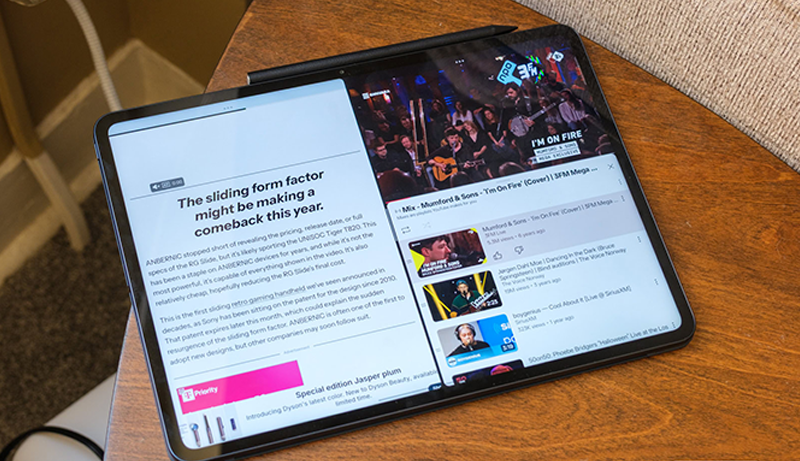
How to Make a Tab Split Screen?
Making a tab split-screen on an Android tablet involves a few simple steps designed for efficiency. Start by opening the first app you want to include. Access the recent apps or multitasking view using your tablet’s navigation buttons or gestures. Tap the icon or menu associated with the app, and select “Split Screen,” “Open in Split View,” or a similar option. This action will anchor the app to the top or left side of the screen.
Next, select the second app from the recent apps list, app drawer, or home screen. The selected app will occupy the remaining portion of the display, creating a split-screen layout. Users can adjust the space allocated to each app by dragging the central divider, providing flexibility depending on whether one app needs more visibility or interaction. Many tablets allow floating windows that overlay on top of split-screen apps, providing additional multitasking options.
Some tablets offer features such as pinned windows, which keep important apps visible while switching others, and quick swaps to exchange positions between the two apps. Access to keyboard shortcuts, stylus input, or taskbar pinning can further enhance efficiency during split-screen usage. Exiting split-screen mode is typically achieved by dragging the divider to the edge of the screen or selecting a close option in the interface.
By using these built-in features, Android tablets transform into powerful multitasking tools, enabling users to work more efficiently, improve workflows, and interact with multiple apps simultaneously without sacrificing usability or comfort.
What is the Best Operating System for Multitasking?
When considering multitasking on tablets, the operating system plays a critical role in determining efficiency, ease of use, and overall productivity. Android is widely recognized for its robust multitasking features, offering native split-screen, floating windows, and flexible app management. Its open ecosystem allows apps to interact seamlessly, providing drag-and-drop functionality, custom gestures, and integrated cloud services for continuous workflow across devices.
iPadOS, designed specifically for Apple tablets, provides advanced multitasking tools such as Slide Over, Split View, and Stage Manager. These features enable multiple apps to run simultaneously, with smooth window resizing, fast app switching, and a touch-optimized interface. iPadOS also integrates productivity-focused enhancements like stylus support, keyboard shortcuts, and consistent software updates, which maintain high performance over time.
Fire OS, primarily found on Amazon tablets, offers basic multitasking capabilities but is less flexible than Android or iPadOS. It supports split-view for certain apps and limited app-switching features but is more restricted due to its app ecosystem. For users focused on professional multitasking, Fire OS may not provide the same level of versatility or performance as Android or iPadOS.
Ultimately, the best operating system for multitasking depends on the user’s needs. Android excels in customization, app compatibility, and split-screen flexibility. iPadOS offers a polished, integrated approach with advanced gestures and productivity features. Both provide effective solutions, while Fire OS is best suited for casual multitasking and content consumption rather than professional workflows.
Why is Battery Life Important for Multitasking?
Battery life is a crucial consideration for multitasking tablets because running multiple apps simultaneously consumes significantly more power than single-app usage. Split-screen operations often require continuous rendering of two active applications, higher display brightness, and sometimes audio or network streaming — all of which place increased demand on the battery. A tablet with insufficient battery life may limit productivity, forcing users to stop their tasks frequently for recharging.
Long-lasting battery performance ensures that users can maintain workflows over extended periods, whether for professional tasks, study sessions, creative projects, or entertainment. Devices with higher battery capacity or optimized energy management allow prolonged dual-app usage without noticeable slowdowns or interruptions. Additionally, fast charging is valuable, enabling users to quickly replenish power during breaks, meetings, or transit.
Portability amplifies the importance of battery endurance. Many users rely on tablets outside of office or home settings, making access to power outlets uncertain. A tablet capable of sustaining multitasking for several hours supports flexibility, allowing work or study in cafés, libraries, or while traveling. Reliable battery performance also enhances the user experience during video calls, streaming, or interactive learning sessions where split-screen usage is constant.
In summary, battery life is fundamental for multitasking because it directly impacts productivity, mobility, and uninterrupted workflow. Users benefit from devices that combine power efficiency, high-capacity batteries, and fast charging to ensure sustained performance during intensive multi-app usage.
Best Tablets for Split Screen Multitasking Comparison
When comparing the leading Android tablets for split-screen multitasking, several key aspects differentiate their suitability for productivity and efficiency. Screen size and resolution are primary considerations. Larger displays provide more room for multiple apps, reducing the need for scrolling or resizing, while high-resolution screens ensure clarity for both text and multimedia content. Devices such as those with 11-inch or larger screens offer an optimal balance for multitasking without compromising portability.
Performance consistency is essential for running two or more apps simultaneously. Smooth transitions, quick app switching, and responsive gestures prevent interruptions during workflows. Tablets equipped with advanced multitasking software allow floating windows, adjustable screen ratios, and taskbar access, which further enhance efficiency. Those offering stylus or keyboard support also expand usability, enabling precise note-taking, editing, and creative applications.
Battery endurance differentiates long-term productivity. Devices with high-capacity batteries and fast charging enable extended split-screen sessions without frequent breaks, a vital factor for professionals, students, and creators. Audio quality complements multitasking for video calls, media editing, and streaming, ensuring that sound remains clear even while multiple applications are in use.
The software ecosystem is equally important. Tablets with the latest Android versions provide native split-screen, optimized gestures, and compatibility with a wide range of apps, while integration with AI or cloud-based tools can further streamline workflows. Durability and portability contribute to convenience, ensuring that tablets remain practical for on-the-go use without sacrificing comfort or build quality.
Ultimately, the best tablets for split-screen multitasking combine large, vibrant displays, reliable performance, long battery life, and advanced multitasking software. Devices that excel in these areas empower users to efficiently manage multiple tasks simultaneously, blending productivity and entertainment. Whether for professional workflows, educational purposes, or creative projects, selecting a tablet that balances these features ensures a smooth, flexible, and enjoyable multitasking experience across various settings and use cases.
Is Android, Fire OS, or iPadOS Better?
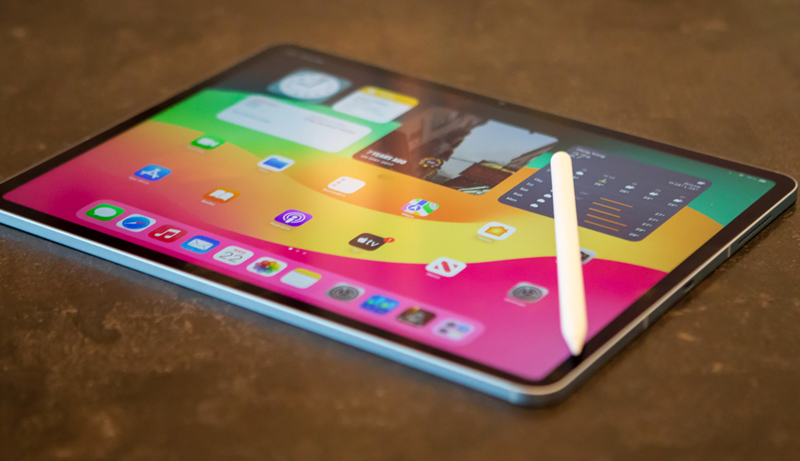
Choosing the right operating system for multitasking depends on the balance between flexibility, ecosystem, and device compatibility. Android is highly versatile, supporting split-screen, floating windows, and adjustable layouts. It offers broad app compatibility, customizable workflows, and robust multitasking tools that appeal to professionals, students, and creators alike. Regular updates and a large selection of compatible accessories enhance productivity further.
iPadOS is optimized for Apple devices and provides a polished, cohesive multitasking experience. Features such as Slide Over, Split View, and Stage Manager offer seamless window management with smooth gestures. iPadOS also integrates stylus and keyboard functionality effectively, making it ideal for creative tasks and professional workflows. However, app availability and customization options are slightly more restricted compared to Android, though the overall performance is highly reliable.
Fire OS, primarily for Amazon tablets, is geared toward media consumption with limited multitasking features. While it can run split-view for certain apps, it lacks the flexibility, gesture controls, and software optimizations found on Android and iPadOS. It is best suited for casual users who prioritize content viewing rather than intensive multitasking.
For users who demand advanced multitasking, Android provides the most versatile and customizable experience. iPadOS is a close second, offering a refined and consistent interface optimized for Apple hardware. Fire OS remains a more basic alternative, suitable for light multitasking and entertainment-focused usage.
FAQ – Best Split Screen Tablet Android
Q1: What is split-screen mode on Android tablets?
A: Split-screen mode allows two apps to run simultaneously on the same display, improving multitasking and productivity.
Q2: Which Android tablets are best for multitasking?
A: Tablets with large screens, high resolution, and optimized multitasking software provide the best split-screen experience.
Q3: Can all apps be used in split-screen mode?
A: Most apps support split-screen, though some may have restrictions. Recent Android versions allow flexible window management.
Q4: How do I activate split-screen mode?
A: Open recent apps, select the first app, tap “Split Screen,” then choose the second app. Adjust the divider as needed.
Q5: Do split-screen apps affect battery life?
A: Yes, running multiple apps consumes more power, making battery capacity and fast charging important considerations.
Q6: Are accessories like stylus or keyboard useful for split-screen multitasking?
A: Absolutely, they enhance productivity, enabling precise input and easier management of tasks across multiple apps.
Conclusion
Split-screen Android tablets transform productivity by allowing users to manage multiple apps simultaneously without compromising comfort or performance. Devices with large, high-resolution displays, smooth multitasking software, long-lasting batteries, and optional accessories like styluses or keyboards provide the ideal environment for work, study, and creative projects.
By combining portability, versatility, and reliable performance, these tablets empower users to maximize efficiency, seamlessly switch between tasks, and enhance both professional and personal digital experiences. For anyone seeking a practical, future-ready solution, investing in a capable split-screen tablet is a smart choice.


Leave a Reply