
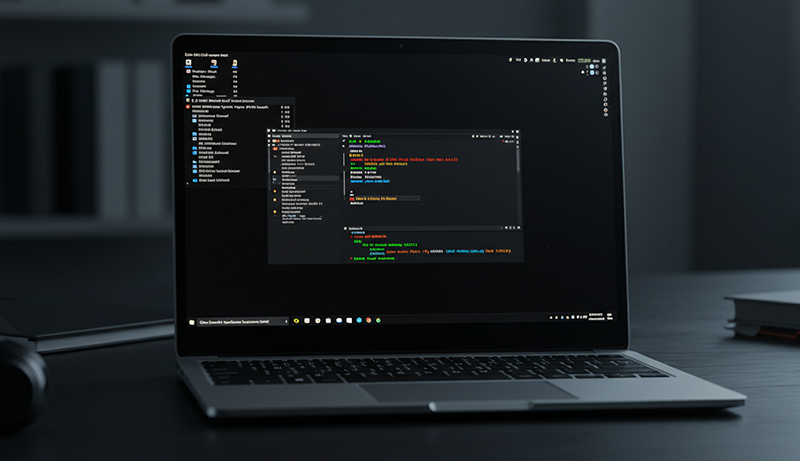
Choosing the best laptop for Kali Linux requires a careful balance of performance, hardware compatibility, and reliability. Kali Linux is widely used for ethical hacking, penetration testing, and cybersecurity research, which means the system must handle demanding tasks like virtualization, network analysis, and security toolkits smoothly.
A powerful multi-core processor ensures fast execution of scripts and tools, while strong graphics support helps with advanced workloads and multi-monitor setups. Display quality also matters, as long sessions of coding and analysis demand clear visuals and comfortable viewing angles.
Connectivity is another critical factor—having multiple ports, fast wireless support, and Ethernet access makes testing and lab work far more efficient. Build quality, keyboard comfort, and thermal management play a major role in long-term usability, especially for professionals and students who work for extended hours.
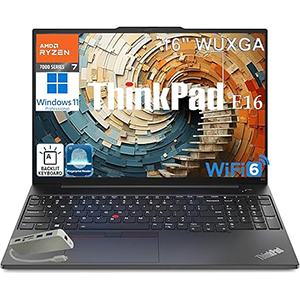
ThinkPad E16 gen2
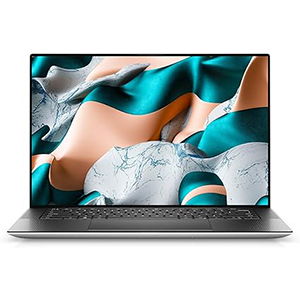
Dell XPS 15 9500
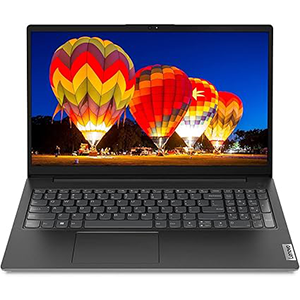
Lenovo 82VG0000US
A well-chosen laptop enhances productivity, stability, and overall Kali Linux performance without constant hardware limitations.
1. Lenovo ThinkPad E16 Gen 2
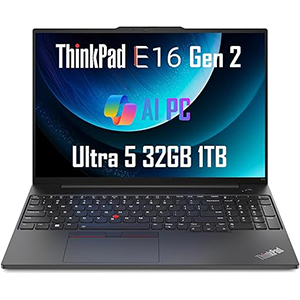
This laptop is a strong choice for running Kali Linux due to its business-grade build quality and stable hardware compatibility. The chassis feels durable and well-engineered, making it suitable for daily professional use as well as intensive cybersecurity tasks. Its large, high-resolution display offers ample workspace for terminal windows, code editors, and monitoring tools, which is essential for penetration testing and analysis. The anti-glare panel reduces eye strain during long working sessions.
Keyboard comfort stands out, providing a responsive and accurate typing experience—important for command-line work and scripting. Security-focused features integrate well with Linux environments, offering added peace of mind during sensitive projects. Connectivity is excellent, with a wide range of modern ports that support external monitors, wired networks, and multiple peripherals without adapters. Wireless performance is fast and reliable, which is crucial when working with network-based testing tools.
Thermal management is well-handled, allowing consistent performance under load. Overall, this system delivers reliability, strong Linux support, and professional usability, making it a dependable platform for Kali Linux users who value stability and productivity.
2. Dell XPS 15 (9500)
This laptop offers a premium experience that translates well to Kali Linux workflows. Its solid aluminum construction gives it a sleek yet durable feel, suitable for both professional and academic environments. The high-resolution touchscreen display provides exceptional clarity, making it ideal for detailed code review, packet analysis, and multitasking across multiple workspaces. The wide color coverage and brightness enhance readability, even during extended sessions.
The large touchpad allows precise navigation, which works smoothly with Linux gestures and custom configurations. Performance remains strong during intensive tasks such as running virtual machines, compiling tools, or handling multiple security scans simultaneously. The display’s aspect ratio offers extra vertical space, which is especially useful for terminal-heavy workflows.
Cooling is thoughtfully designed to maintain steady performance without excessive noise. Port selection supports external displays and essential accessories, making it suitable for advanced lab setups. This model is particularly appealing to users who want a balance of power, display excellence, and refined design while working with Kali Linux on demanding security projects.
3. Lenovo 82VG0000US (V15 Series Laptop)
This laptop is designed for everyday computing but can still serve as a practical entry-level option for Kali Linux users. Its lightweight design makes it easy to carry between classes, offices, or training labs. The full-sized display provides a comfortable viewing area for learning Linux commands, running basic tools, and practicing networking fundamentals. Anti-glare technology helps maintain visibility in different lighting conditions.
The keyboard includes a numeric keypad, which can be useful for data entry and scripting tasks. Linux compatibility is generally straightforward, allowing Kali Linux to run smoothly for basic penetration testing, coursework, and lightweight virtual environments. Integrated graphics handle standard desktop usage and tool interfaces without issue.
Connectivity options are well-rounded, supporting wired networks, external displays, and common peripherals—important for hands-on cybersecurity practice. Audio and webcam features support online learning and collaboration. While it is not built for extreme workloads, this system is a reliable and accessible choice for beginners who want to explore Kali Linux without unnecessary complexity.
4. ASUS ROG Zephyrus G14
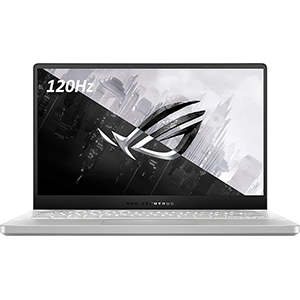
This laptop is a powerful option for Kali Linux users who require high performance in a compact form factor. Its robust processing capability makes it suitable for running advanced penetration testing tools, multiple virtual machines, and resource-intensive security simulations. The high-refresh-rate display delivers smooth visuals, which is beneficial when multitasking across terminals, dashboards, and monitoring tools.
Despite its gaming-focused roots, the design remains portable and professional enough for daily cybersecurity work. Linux compatibility is strong, and hardware support allows efficient use of both CPU- and GPU-accelerated tasks. Cooling technology helps sustain performance during extended workloads, such as vulnerability scans or brute-force testing environments.
The keyboard is responsive and comfortable for long coding sessions, while the port selection supports external displays and testing hardware. Power efficiency allows flexible usage without constantly relying on a charger. This model is ideal for advanced users who want a compact yet extremely capable Kali Linux machine that can handle both professional security tasks and demanding workloads with ease.
5. Acer Aspire 5
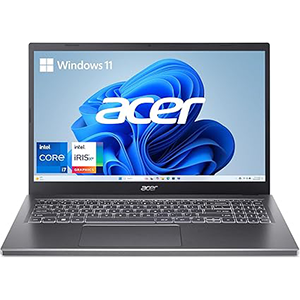
This laptop strikes a balance between performance and portability, making it a solid mid-range choice for Kali Linux users. Its slim and modern design feels premium while remaining lightweight enough for everyday mobility. The full HD IPS touchscreen offers clear visuals and wide viewing angles, which are helpful for reading logs, writing scripts, and managing multiple windows efficiently.
The keyboard is backlit and comfortable, supporting long working sessions in low-light environments. Linux installation is generally smooth, and the system handles common Kali Linux tools, virtualization tasks, and multitasking with consistency. Thermal performance is optimized through smart airflow design, keeping the device responsive under moderate loads.
Connectivity is a strong point, with support for modern high-speed ports and external displays, making it easy to build a flexible testing setup. The high-quality webcam and audio enhancements add value for remote collaboration and training sessions. Overall, this laptop is well-suited for users who want a dependable, well-rounded Kali Linux experience without stepping into bulky or overly specialized hardware.
Factors to Consider When Choosing Laptop for Linux Kali
When choosing a laptop for Kali Linux, you need to guarantee the processor is fully compatible to handle intensive tasks smoothly. Don’t overlook the importance of sufficient RAM and storage, as well as good graphics support for any visual processing.
Also, pay attention to display quality and connectivity options to enhance your overall experience.
Processor Compatibility
Since Kali Linux relies heavily on processor capabilities, you’ll want to make certain your laptop’s CPU architecture supports x86_64 (amd64) systems. This guarantees full compatibility with Kali’s core and tools. Opt for processors with virtualization support like Intel VT-x or AMD-V; these features let you run virtual machines and advanced security testing software smoothly.
Multi-core CPUs, such as Intel i5/i7 or AMD Ryzen series, handle intensive penetration testing tasks efficiently. Also, check that the clock speed is at least 2.0 GHz to maintain responsive performance during complex operations. Avoid older or low-end processors like Intel Celeron or Atom, as they often can’t keep up with Kali Linux’s demands, leading to frustrating slowdowns and limited functionality.
RAM and Storage
How much RAM and storage you choose can make or break your Kali Linux experience. You’ll want at least 8GB of RAM to run Kali smoothly, especially if you multitask or use resource-heavy tools.
When it comes to storage, a minimum of 256GB SSD is essential to house the OS, your tools, and files without slowing down performance. SSDs also speed up boot times and boost responsiveness, which is critical when dealing with large data sets or virtual machines.
Think ahead—choose a laptop that lets you upgrade both RAM and storage so you can handle future updates and increased workloads. The right balance of ample RAM and fast storage keeps your system stable and efficient during intense penetration testing or security assessments.
Graphics Support
Why does graphics support matter when choosing a laptop for Kali Linux? Graphics hardware impacts not only visual output but also performance in graphics-intensive tasks like GPU-accelerated cracking or virtualization. Kali Linux supports a wide range of integrated Intel UHD and AMD Radeon graphics, making certain compatibility with most modern laptops.
However, if you need more power, a dedicated GPU such as NVIDIA or AMD Radeon might be necessary—just verify Kali compatibility first. The Linux kernel includes many open-source drivers, which usually provide stable performance, but you might need proprietary drivers for advanced features or better speed.
Since newer or uncommon GPUs can cause issues, check hardware support lists and community forums before buying to guarantee smooth, hassle-free graphics support on your Kali Linux laptop.
Display Quality
When you choose a laptop for Kali Linux, the display quality directly affects your ability to work efficiently, especially during detailed tasks like network analysis or security testing. Aim for a high-resolution screen with at least Full HD (1920×1080) to guarantee sharp and clear visuals. An IPS panel is ideal because it offers wider viewing angles and more accurate colors, which help when you’re analyzing complex data.
Look for a display with brightness levels of 300 nits or higher to maintain visibility in various lighting conditions. Also, a matte or anti-glare screen reduces reflections and minimizes eye strain during long sessions. Finally, prioritize good color accuracy and contrast ratio to support precise and comfortable work on Kali Linux.
Connectivity Options
What connectivity features should you look for in a Kali Linux laptop? First, guarantee it has multiple USB ports, including USB-C, so you can easily connect peripherals and external devices. Built-in Wi-Fi 6 support is essential for faster, more reliable wireless networking, especially during penetration testing or remote work. Bluetooth 5.0 or higher lets you pair wireless accessories like headphones and keyboards seamlessly.
An HDMI or DisplayPort output is a must if you plan to connect to external monitors or projectors for extended displays. Finally, having an SD or MicroSD card slot simplifies transferring media files from cameras or other devices, streamlining your workflow. Prioritizing these connectivity options ensures your Kali Linux laptop stays versatile and efficient in various environments.
Security Features
Along with connectivity, security features play a significant role in choosing the right laptop for Kali Linux. You’ll want a device with fingerprint readers or biometric authentication to enhance login security. Hardware-based protections like Trusted Platform Modules (TPMs) are essential because they safeguard encryption keys and sensitive data.
Look for secure boot capabilities to ensure only trusted software runs during startup, reducing malware risks. Privacy shutters for webcams and microphones are a must-have to prevent unauthorized access or eavesdropping. Additionally, your laptop should support encryption tools and hardware security modules (HSMs) to strengthen data protection, especially for security-focused tasks.
Prioritizing these features helps you keep your Kali Linux environment secure against evolving threats.
Portability and Battery
Since you’ll likely carry your Kali Linux laptop to various locations, choosing a lightweight model under 3.5 pounds with compact dimensions makes a significant difference in portability. Look for laptops around 0.7 inches thick—they fit easily into backpacks or small bags without adding bulk.
Battery life is equally vital; aim for a device that lasts over 8 hours to avoid frequent recharging during long field sessions. Quick charge capabilities are a bonus, letting you top up power rapidly during short breaks. Prioritize energy-efficient processors to extend battery life without sacrificing performance.
Balancing these factors ensures your Kali Linux laptop stays powerful and portable, letting you work efficiently wherever your security tasks take you.
Frequently Asked Questions
Can Kali Linux Run Smoothly on Laptops With Integrated Graphics?
Yes, Kali Linux can run smoothly on laptops with integrated graphics. You don’t need a powerful dedicated GPU for most tasks, as Kali relies more on CPU and RAM.
Just make sure your laptop has at least 8GB of RAM and a decent processor. Integrated graphics handle the user interface without issues, so you’ll get a responsive experience during penetration testing and other activities without extra graphics power.
What Battery Life Can I Expect When Running Kali Linux?
You can expect battery life ranging from 4 to 10 hours when running Kali Linux, depending on your laptop’s hardware and usage. If you’re running resource-intensive tasks like penetration testing or virtual machines, battery drains faster. Lighter activities like basic terminal work will extend battery life.
To maximize it, adjust power settings, reduce screen brightness, and close unnecessary apps. Choosing laptops with efficient processors and larger batteries also helps you stay unplugged longer.
Are There Specific Laptop Brands Known for Better Linux Driver Support?
Yes, you’ll find brands like Lenovo, Dell, and System76 offering better Linux driver support out of the box. Lenovo’s ThinkPads are popular for their reliability and compatibility. Dell’s XPS series often comes with Ubuntu pre-installed, ensuring smooth drivers.
System76 specializes in Linux laptops, so drivers are optimized for their hardware. Choosing these brands saves you time troubleshooting and lets you focus on your Kali Linux projects without hardware hiccups.
How Important Is SSD Speed for Kali Linux Performance?
SSD speed is pretty important for Kali Linux performance since it directly affects how fast your system boots, loads applications, and handles file operations. Faster SSDs reduce wait times when running multiple tools or virtual machines, which is common in penetration testing.
While CPU and RAM matter a lot, a speedy SSD guarantees your workflow stays smooth and responsive, letting you focus on tasks without annoying delays or bottlenecks.
Can I Dual Boot Kali Linux With Windows on These Laptops?
Imagine your laptop as a canvas ready to paint two vibrant operating systems side by side. Yes, you can dual boot Kali Linux with Windows on these laptops. Just partition your drive carefully, install Windows first, then Kali, and configure the bootloader to let you choose your OS at startup.
This way, you’ll have the best of both worlds, switching seamlessly between hacking tools and everyday tasks.
Conclusion
Choosing the Best Laptops for Kali Linux is like picking the perfect sword before a quest—you want power, reliability, and portability by your side. Whether you lean toward Lenovo’s robust builds or ASUS’s sleek designs, each option here equips you to conquer any cybersecurity challenge.
So, gear up wisely, and let your laptop be the Excalibur that *unlocks* your hacking potential in 2026. Your next adventure in tech awaits!


Leave a Reply