
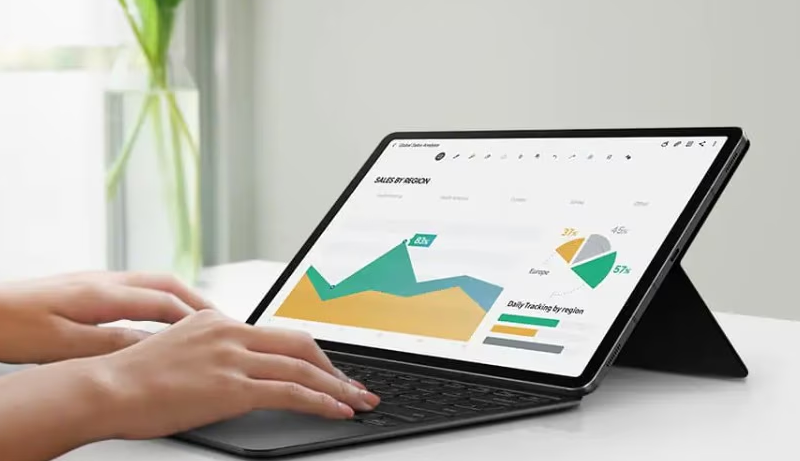
Tablets have evolved from casual media devices into serious productivity machines. For office work you want a slate that pairs with a good keyboard, supports a precise stylus, runs robust productivity apps (email, docs, spreadsheets, video conferencing), and stays light and fast through a full day.
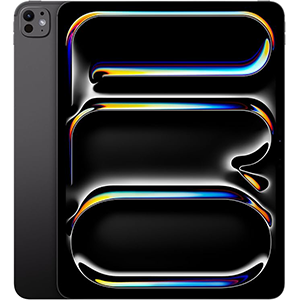
iPad Pro 13-Inch (M4)
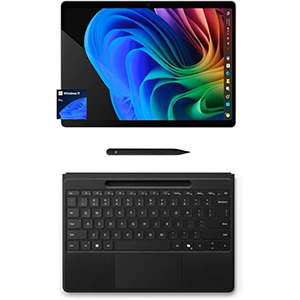
Surface Pro 11 Bundle
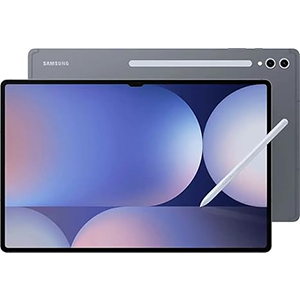
Galaxy Tab S10 Ultra
Important extras include a crisp, color-accurate display for long reading sessions, reliable battery life, strong wireless connectivity, and an OS that plays nicely with the desktop or cloud tools your team uses. The right tablet can replace a laptop for many office tasks while adding mobility and versatility.
1. Apple iPad Pro 13-Inch (M4)
The iPad Pro remains the go-to option for power users who want a tablet-first workflow. It pairs with Apple’s keyboard and pencil ecosystem for fast note-taking, markup, and document editing, and its high-brightness OLED display makes long spreadsheet or presentation work easy on the eyes.
iPad OS supports robust multitasking and a wide library of productivity apps (including excellent Office and creative tools), plus seamless continuity with other Apple devices for handoff and file sharing. If your office relies on iPad-ready apps and smooth accessory integration, this model is built around that experience.
2. Microsoft Surface Pro 11 Bundle
If your workflow depends on full Windows desktop apps, the Surface Pro line is the most natural tablet replacement for a laptop. It runs desktop Office and legacy productivity software natively, supports the Surface Keyboard and Surface Pen for handwriting and precision input, and offers a standard file system for straightforward document management.
The convertible kickstand and detachable keyboard provide laptop-like ergonomics when you need them, and Windows features for windowed multitasking make it easy to juggle many office tasks at once. Ideal for teams that need true desktop compatibility in a tablet form factor.
3. Samsung Galaxy Tab S10 Ultra
Samsung’s flagship Tab balances a large, vivid AMOLED display with S Pen support that’s tuned for note-taking and annotations. It integrates tightly with Samsung Notes, DeX mode for a desktop-like interface, and Android productivity apps — making it a good fit for users who prefer Google services or need better cross-device flexibility beyond one ecosystem.
The tablet’s accessory ecosystem includes keyboard covers that convert the device into a lightweight workstation, and its display makes reviewing presentations, PDFs, and spreadsheets comfortable for extended sessions. A strong Android alternative for mobile professionals.
4. OnePlus Pad 3 Storm Blue

The OnePlus Pad 3 is a compelling Android slate for people who want a large display and long battery life in a minimalist package. It offers smooth multitasking, a high-refresh display that helps when scrolling large documents, and good stylus support for quick edits and annotations.
The tablet’s software emphasizes clean performance and includes features to help productivity, such as split-screen apps and a desktop-style launcher for easier multitasking. It’s a practical choice for users who want a capable Android tablet that leans toward productivity without the bulk of a laptop.
5. Apple iPad Air 13-inch with M3 chip
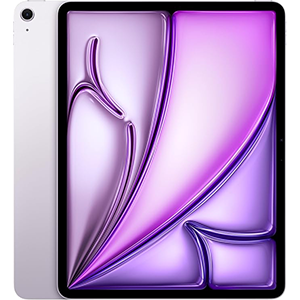
For many office users the iPad Air hits the sweet spot between portability and productivity. It supports the same ecosystem of keyboards and styluses as higher-end iPads, has a bright, accurate display for document review, and runs the same robust suite of productivity apps.
Its lighter weight and slim profile make it ideal for frequent meetings or travel, while software features like multitasking gestures and split-screen give you efficient ways to handle emails, documents, and video calls. A balanced pick for those who want iPad convenience in a more travel-friendly chassis.
Buying guide — best tablets for office work
Choosing the best tablet for office work means matching device strengths to how you actually get things done. Start by listing your top office tasks: heavy document editing, frequent video conferencing, annotation and note-taking, running desktop apps, or lots of multitasking. That list will steer you toward the right operating system, accessories, and display size.
Operating system and app ecosystem.
The OS dictates which apps run best and how naturally the tablet will integrate with your existing tools. If your office uses macOS/iPhone heavily, an iPad gives the smoothest continuity and access to polished tablet-first apps. If you need native Windows desktop apps (full Microsoft Office desktop, legacy business software, or heavy local applications), a Windows convertible is the safest choice since it runs the same programs you use on a laptop. Android tablets offer strong flexibility, especially when you prefer Google Workspace and Android-first app options; they also often include desktop-style interfaces for multitasking.
Keyboard and input options.
A keyboard cover changes a tablet from a handheld device into a laptop-like workstation. Look for keyboards with comfortable key travel and stable attachment. If you do a lot of typing, prioritize a tablet with an official keyboard accessory rather than relying on third-party folios. For annotation, drawing, or signing documents, active stylus support is essential — check that the stylus is precise, low-latency, and well-integrated with note-taking apps.
Display size and quality.
Office work benefits from a bright, color-accurate display. If you mostly edit text and spreadsheets, an 11–13 inch screen provides a good balance between portability and usable workspace. For heavy multitasking, larger panels (13+ inches) or devices that offer a desktop-like interface can be more productive. Also consider resolution and panel type: higher contrast and brightness reduce eye fatigue during long sessions, and wide viewing angles help during group reviews.
Battery life and portability.
A workday’s length and how often you move between meetings determine how much battery you need. Tablets that can last a full workday under mixed use reduce the need to hunt for outlets. Factor weight too; lighter tablets are easier to carry between meetings but sometimes trade battery or screen size for portability.
Connectivity and ports.
USB-C with DisplayPort or Thunderbolt support is useful for connecting external displays or wired peripherals. If you travel internationally or move between offices, an option with cellular connectivity can keep you productive when Wi-Fi is unreliable. Also check what wireless standards the tablet supports for faster transfers and stable conferencing.
Software features and multitasking.
Some tablets include desktop-like modes or enhanced multitasking that make working with several apps easier. Look for robust split-screen support, windowed apps, and good file management. Native support for popular collaboration suites (Microsoft 365, Google Workspace, Slack, Zoom) should be smooth — test those apps where possible.
Accessories and ecosystem.
Don’t ignore the ecosystem: compatible docks, second-screen features, or cloud services can make a big difference. Official keyboards, styluses, and firmware updates from the manufacturer tend to give a more reliable experience than unsupported accessories.
Security and manageability.
For business users, hardware security features (biometric login) and timely software updates matter. If IT manages your devices, check enterprise management capabilities and compatibility with your mobile device management (MDM) tools.
Value over raw specs.
Avoid getting hung up on headline specs alone. For office use, real-world performance, software compatibility, and accessory support are generally more impactful than a single hardware number. Try devices in person when possible and test the exact apps and workflows you rely on.
Conclusion
Choose the OS that matches your office tools, pick a tablet with an official keyboard and reliable stylus if you annotate or type a lot, prioritize a bright display and full-day battery, and verify connectivity options (USB-C, cellular) and enterprise manageability before buying. The right combo of software support and accessories will determine whether a tablet truly replaces your laptop for office work.


Leave a Reply