
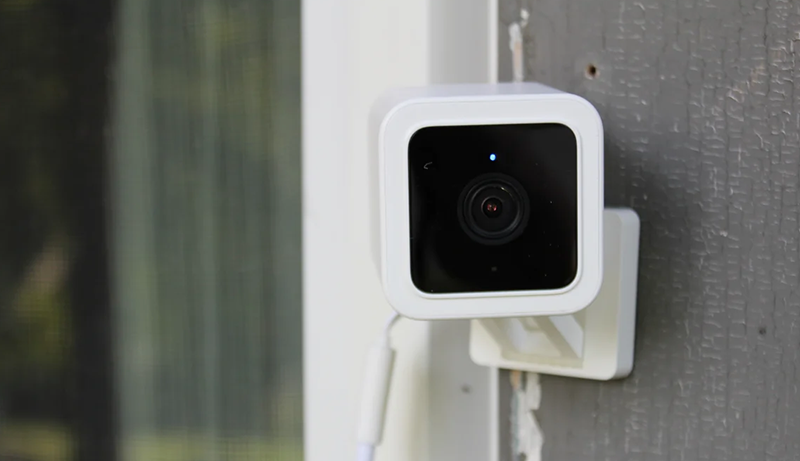
Wyze, known for its affordable and innovative home devices, has gained popularity with its Wyze Cam series. One notable feature is the ability to connect Wyze cameras with Amazon Echo Show, allowing users to conveniently view live feeds through voice commands. In this comprehensive guide, we will walk you through the step-by-step process of connecting your Wyze Camera to Echo Show, ensuring a seamless integration of these two devices.
Section 1: Prerequisites
To get started, you’ll need the following items:
- A Wyze account
- An Echo device with a screen (Echo Show, Echo Spot, or a Fire TV device)
- The Wyze app
- A compatible mobile device
- A stable Wi-Fi connection
Once you have these prerequisites in place, you’re ready to begin the setup process.
Section 2: Download the Wyze App and Create an Account
The Wyze app serves as the central hub for connecting your Wyze Camera to Echo Show. Follow these steps:
- Download the Wyze app from the Amazon Appstore.
- Create a Wyze account by following the provided instructions.
- Connect your Wyze camera to your Echo Show using the Wyze app.
Section 3: Connect Wyze Cam to Wi-Fi
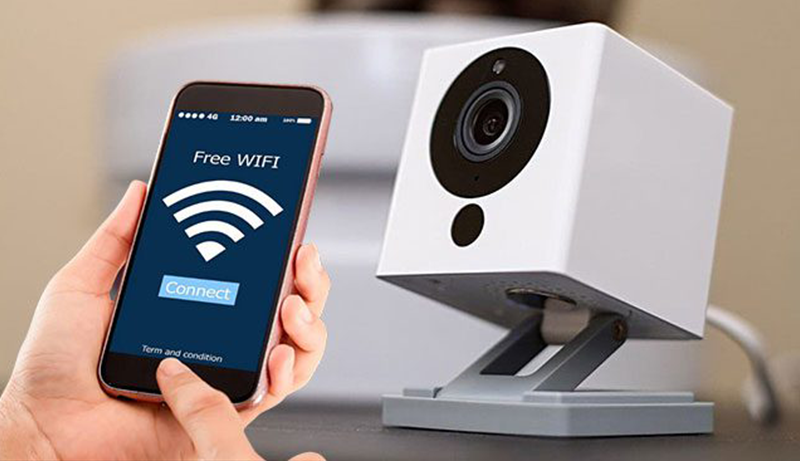
To fully benefit from your Wyze Cam, it needs to be connected to your Wi-Fi network. Follow these steps:
- Open the Wyze app and tap “Add a product.”
- Select Wyze Cam from the list of products.
- Choose “Set up a new Wyze Cam” and follow the prompts to connect it to your Wi-Fi network.
- Once connected, you can view the live feed in the Wyze app.
Section 4: Connect Wyze Cam to Echo Show
To connect your Wyze Cam to Echo Show, follow these steps:
- Open the Wyze app, tap the camera you want to connect, and tap “Edit.”
- Scroll down and tap “Connect to Alexa.”
- Enter your Amazon account information.
- Select the Echo devices you want to connect to your Wyze Cam.
With this setup, saying “Alexa, show me the front door camera” will display the live feed on your Echo Show.
Section 5: Connect to Amazon Echo Show
Follow these steps to connect your Wyze account to Amazon Echo Show:
- Open the Wyze app and tap “Settings.”
- Select “Connected Services” and choose ‘Wyze skill’ from the menu.
- Scroll down and select your Wyze camera, then tap ‘Enable Skill.’
- Follow the prompts to link your Amazon account with your Wyze account.
- Say, “Alexa, show me my front door camera,” and your Echo Show will display the live feed from your Wyze Cam.
Section 6: Tips and Tricks for Using Wyze Cam with Echo Show
Maximize your Wyze Cam and Echo Show experience with these tips:
- To connect Wyze Cam to Echo Show, say, “Alexa, discover my devices.”
- Create custom routines, e.g., “Alexa, when Wyze Cam detects motion, turn on the living room lights.”
- Swipe left or right on Echo Show to view multiple Wyze Cams.
- Take a screenshot with the command “Alexa, take a screenshot.”
Frequently Asked Questions (FAQ)
Answer common questions about connecting Wyze Cam to Echo Show:
How to Connect Wyze Cam to Amazon Echo Show?
Connecting your Wyze Cam to Amazon Echo Show is a straightforward process. Follow these steps to seamlessly integrate the two devices:
Open the Wyze App:
- Ensure that you have the Wyze app installed on your mobile device.
Navigate to Camera Settings:
- Open the Wyze app and tap on the menu icon in the top left corner.
- Select “WyzeCam” from the list of devices.
Access Amazon Alexa Settings:
- Tap the gear icon in the top right corner of the WyzeCam screen.
- Select “Amazon Alexa” from the list of options.
Enable Video Display on Echo Show:
- Toggle the “Display video on Echo Show” switch to the ON position.
Link Your Amazon Account:
- Tap “Link Account” and follow the instructions to log in to your Amazon account.
- Once logged in, you should be able to view your Wyze Cam’s live feed on your Echo Show.
What You Can Do with Wyze Cam and Amazon Echo Show?
Once connected, you can enjoy various functionalities and make the most out of your Wyze Cam and Amazon Echo Show pairing:
View Live Feed:
- Simply say, “Alexa, show me my Wyze Cam,” to view the live feed on your Echo Show.
Take Snapshots:
- Command Alexa with “Alexa, take a snapshot from my Wyze Cam” to capture images.
Stop Viewing Feed:
- To stop viewing your camera’s feed, say, “Alexa, hide my Wyze Cam.”
How to Disconnect Wyze Cam from Amazon Echo Show?

If you ever need to disconnect your Wyze Cam from Amazon Echo Show, follow these steps:
Open Amazon Alexa App:
- Launch the Amazon Alexa app on your mobile device.
Access Device Settings:
- Select “Settings” and then choose “Devices.”
Select Your Echo Device:
- Navigate to “Echo & Alexa,” and select the specific Echo device connected to your Wyze Cam.
Enable Camera Privacy Mode:
- Look for the option named “Camera Privacy Mode” and toggle it ON. This will disable all camera feeds on your Echo device.
Alternatively, if you wish to completely disconnect your Wyze Cam from Amazon Alexa:
Delete Wyze Account:
- Visit and log in.
- Click on “Delete Account.” This will automatically disconnect any cameras associated with that account from Amazon Alexa.
By following these steps, you can easily connect, enjoy various features, and disconnect your Wyze Cam from Amazon Echo Show as needed.
Conclusion
Summarize the guide, emphasizing the convenience of using Wyze Cam with Echo Show for home security. Reiterate the steps and highlight the versatility provided by Alexa voice commands. Encourage users to explore additional features and stay connected with their home, even when away.
By following this comprehensive guide, users can seamlessly integrate their Wyze Camera with Amazon Echo Show, creating a powerful and user-friendly home security system.


Leave a Reply