
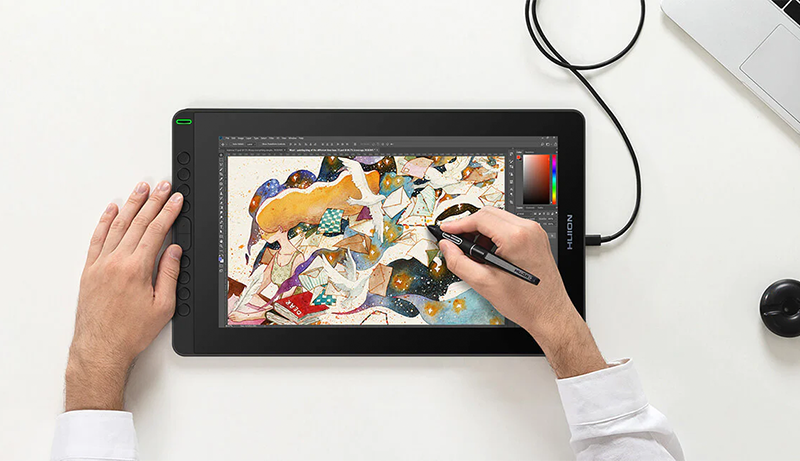
In the past, people relied on traditional methods such as paper and pencils for their creative drawings, as technology wasn’t as advanced. These conventional methods often yielded impressive and realistic results. However, with the changing times, electronic devices have become highly precise and capable of creating even more realistic artwork. As a result, we’ve compiled a list of the best tablets for Adobe Illustrator to cater to the needs of modern artists and designers.
Software and various digital platforms have made it possible for even novice or intermediate users to produce professional-level artwork. Traditional methods had their limitations, like the need to erase mistakes, change sheets, or, at times, start over entirely. Transitioning to software and new technology has addressed many of these issues, with Adobe Illustrator being a prominent software choice for illustrators.
To effectively use such software, having the right device is crucial. Many artists have used various physical tools like brushes, pencils, and charcoal of different sizes to enhance the clarity of their sketches. In today’s digital era, software offers numerous benefits, but having the appropriate device to run these applications is essential.
Top pick
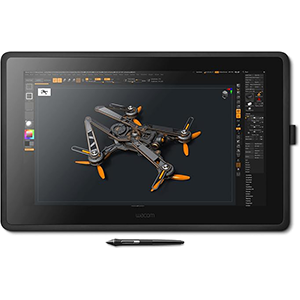
Wacom Cintiq 22
Editor’s choice
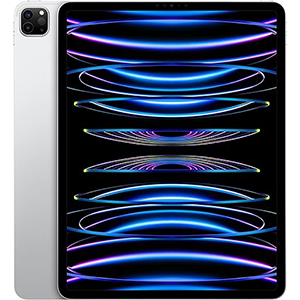
Apple iPad Pro
Best value
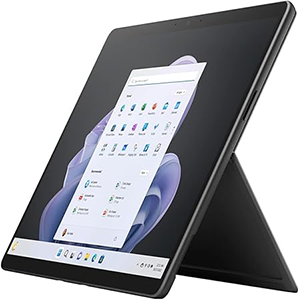
Surface Pro 9
Various software options, including Autodesk and Photoshop, enable artists to embrace reliability and efficient editing methods on electronic devices. Initially, there were challenges with using a keyboard and mouse for drawing, as creating precise and natural lines can be quite challenging with these tools.
With this introduction and a buyer’s guide, let’s delve into our main focus: the best tablets for Adobe Illustrator available online. These tablet selections are based on factors like popularity, pricing, performance, specifications, hardware advancements, software compatibility, screen responsiveness, and user feedback.
We’ve curated a range of graphical tablets that cater to various budget preferences, ensuring that you can easily find the one that best suits your needs.
1. Wacom Cintiq 22
I’ve used various Wacom tablets over time, including models like the One by Wacom, Intuos, and Wacom Bamboo, all of which I enjoyed. However, the Wacom Cintiq 22 really stands out to me.
With its large screen and Full HD resolution, it’s great for drawing and image editing. In fact, you can even use it as a second monitor, thanks to its size, though the screen resolution might not match that of your laptop.
The tablet comes with the Wacom Pro Pen 2, which offers 8192 pressure levels and tilt sensitivity. This allows for precise, natural strokes—unlike the uniform lines you’d get using vector shapes or the pen tool, since no one draws with constant pressure.
One drawback is the lack of Wi-Fi or Bluetooth connectivity, which could be a dealbreaker for those who prefer a wireless setup.
It’s also not the most budget-friendly option, as it’s quite pricey compared to other tablets. However, if cost isn’t a concern, the Wacom Cintiq 22 is definitely worth considering.
2. Apple iPad Pro
Can you use the iPad as a drawing tablet? Absolutely, yes!
One of the biggest advantages of the iPad Pro is its impressive display. On top of that, the built-in camera is a great feature—you can take photos and work on them directly, without needing to transfer files between devices.
What I love most about using the iPad as a drawing tablet is that it’s essentially a mini-computer. With Adobe Illustrator available on the iPad, you can travel light and only bring one device instead of both a laptop and a tablet. It’s portable and super convenient.
However, the iPad doesn’t come with a stylus, so you’ll need to purchase one separately. While the Apple Pencil is the best option, it can be quite pricey. If you opt for a different brand, just make sure to check for compatibility first.
3. Microsoft Surface Pro 9
Not an Apple fan? The Microsoft Surface Pro 9 is another great option for drawing in Adobe Illustrator. With its Intel 12th Gen i7 processor, the Surface Pro 9 is fast and efficient, making it perfect for multitasking and handling multiple projects with ease.
I really like the concept of a stand-alone tablet like this because you don’t need to carry both a laptop and a tablet. While it may not fully replace a traditional computer or laptop, it’s an excellent choice if you frequently travel for work.
Keep in mind, though, that the Surface Pro 9 isn’t designed specifically as a drawing tablet, and it doesn’t come with a stylus, so you’ll need to buy one separately. While the Surface Pen is the logical choice, many users have noted that it’s not as good as Wacom’s Bamboo styluses or the Apple Pencil.
4. HUION KAMVAS Pro 16
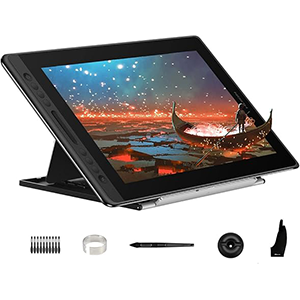
The Huion KAMVAS Pro 16 is a versatile drawing tablet designed for digital artists. Its 15.6-inch full-laminated screen offers a seamless drawing experience, closely mimicking the feel of drawing on paper. The anti-glare glass ensures clarity and reduces eye strain, making it suitable for long hours of work.
The tablet boasts a 120% sRGB color gamut, providing vibrant and true-to-life colors. This feature is particularly beneficial for artists who require precise color accuracy in their work. The 8192 levels of pressure sensitivity and ±60° tilt support of the battery-free stylus allow for nuanced and detailed artwork, responding well to varying pressure and angles.
Six customizable express keys and a touch bar enhance workflow efficiency, enabling quick access to frequently used functions. The adjustable stand, which can be set between 20 and 60 degrees, offers ergonomic comfort, reducing strain on the neck and shoulders during extended use.
Compatibility with Windows, macOS, and Linux makes the KAMVAS Pro 16 a flexible tool for various operating systems. Its lightweight design and portability add to its appeal, making it a practical choice for artists on the go. Overall, the Huion KAMVAS Pro 16 is a reliable and high-performing tablet that meets the needs of both amateur and professional digital artists.
5. XENCELABS Medium Bundle
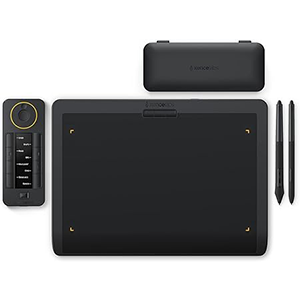
The XENCELABS bundle comes with two battery-free styluses in different sizes and Quick Keys, which help streamline your workflow. For instance, you can quickly adjust brush sizes or zoom in on specific areas of your drawing with ease.
Another standout feature is the texture of the drawing surface, which, combined with 8192 levels of pen pressure sensitivity and 60-degree tilt support, allows you to create both 2D and even 3D drawings with precision.
I love this bundle because it eliminates the hassle of selecting accessories and offers great value for money. However, it would be even better if it came with a screen, as I still find drawing directly on the screen more intuitive.
Conclusion
A good tablet can significantly improve your workflow in Adobe Illustrator, especially when it comes to drawing and coloring. If you’re looking to streamline your process, you’re in the right place.
For daily graphic design tasks in Adobe Illustrator, a standard graphic tablet should be more than sufficient. However, if you’re focused on digital drawing, I’d recommend opting for a tablet with a screen or the Intuos Pro Paper Edition.
I hope this review helps guide your decision!


Leave a Reply